GST/HST returns straight from the ledger
Set up tax rules once, let invoices, bills and expense claims post their tax, and prepare the GST/HST return from the ledger. What Modulix does, and what stays with you.

A sales tax return is only as good as the entries behind it. If tax is calculated correctly on every invoice, bill and expense claim, and each one reaches the ledger, the return is mostly arithmetic. This article follows that chain for a Canadian business filing GST/HST. The same approach works for a VAT return.
1. Taxes on documents come from rules
In the Taxes module you define rates (for example GST 5 %, HST 13 %, PST and QST), group the rates that are charged together (GST + PST, for instance) and write rules that pick a group from the customer's country and province and the product's tax class: standard, reduced, zero-rated or exempt. Tax-exempt customers are recorded with a reason and, if you have one, a certificate number.
Quotations, orders and invoices then ask the Taxes module for every line, so nobody picks a tax by hand. The Try it tab lets you test a province and tax class before a document goes out.
2. Tax reaches the ledger with each document
When an invoice is issued, its tax is credited to a tax account. When a vendor bill or an expense claim is approved, the recoverable tax it contains is debited to Tax recoverable: these are your input tax credits. Nothing is posted by hand.
On Tax returns → Tax accounts, select Set up tax accounts to make sure the three accounts exist: tax collected, tax recoverable and taxes payable to authorities. If you collect several taxes, tick An account for each rate to see each one's balance separately.
3. Compare collected and paid
The Collected vs. paid tab shows tax collected, recoverable tax paid and the net, by month, quarter or year. It leaves out the entries made by filing and paying returns, so it shows the tax of your sales and purchases only. It is a good check before you prepare anything.
4. Prepare the return
On the Returns tab, create a GST/HST return for your reporting period. The draft reads live figures from the ledger:
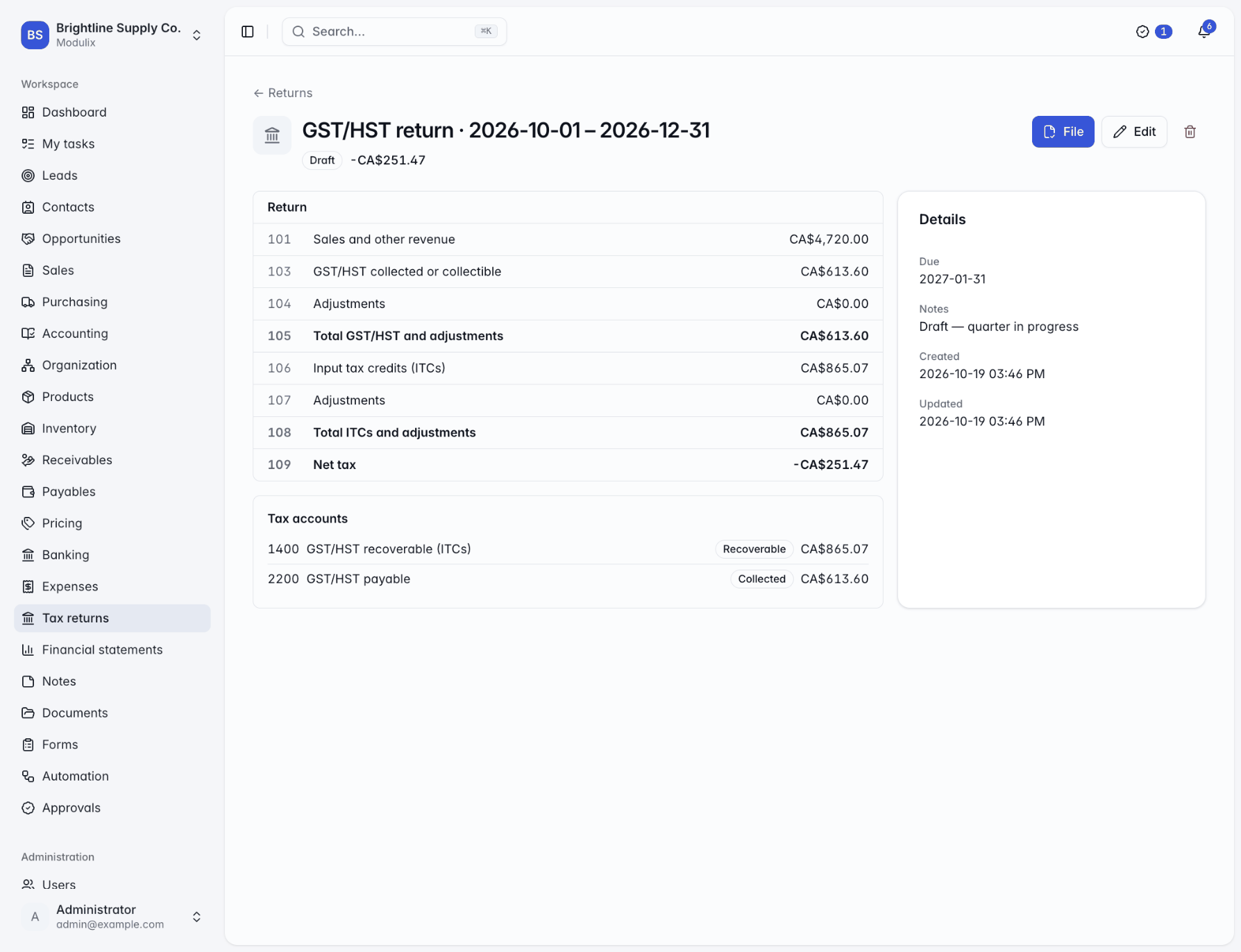
- Line 101, sales and other revenue: all income posted in the period.
- Line 103, GST/HST collected or collectible: tax collected.
- Line 106, input tax credits: recoverable tax paid.
- Line 109, net tax: line 105 less line 108.
Adjustment lines are shown as zero. If you need amounts there, adjust them on the form you file. Because the draft is live, entries you post later in the period still appear, which is why the return should be the last step of the period, not the first.
5. File, then pay
Modulix does not send returns to the Canada Revenue Agency. You file on the CRA's own service, then select File in Modulix. Filing keeps the return's figures as they are that day and posts an entry, dated on the last day of the period, that moves the period's tax into Taxes payable to authorities: the amount you owe, or the refund you are due.
When the money leaves the bank, select Record payment on the return, or match the line on your bank statement and select Settle next to the return. The return becomes Paid.
A few habits that help
- Match the return to your filing frequency. Filed returns cannot overlap, so a second return for the same days is refused.
- Close the fiscal periods once the return is filed, so nothing more is posted in them by mistake. If an entry is posted in a filed period anyway, the return shows how much was posted since filing, and you correct it in a later return.
- Fill in customer addresses. Rules choose taxes from the customer's country and province. Without a country, only rules for any country can apply.
- tax
- GST/HST
- Canada
Related resources
 BlogFinance & accounting
Month-end close for small finance teams: a checklist that holds up
A seven-step close for teams where one or two people do the books: post everything, reconcile the banks, check receivables, payables and tax, adjust, review, and close the period.
6 min BlogFinance & accounting
Bank reconciliation without spreadsheets
Import the statement, let the obvious matches happen, deal with the rest in one dialog, and reconcile only when the difference is zero. How bank reconciliation works in Modulix.
5 min